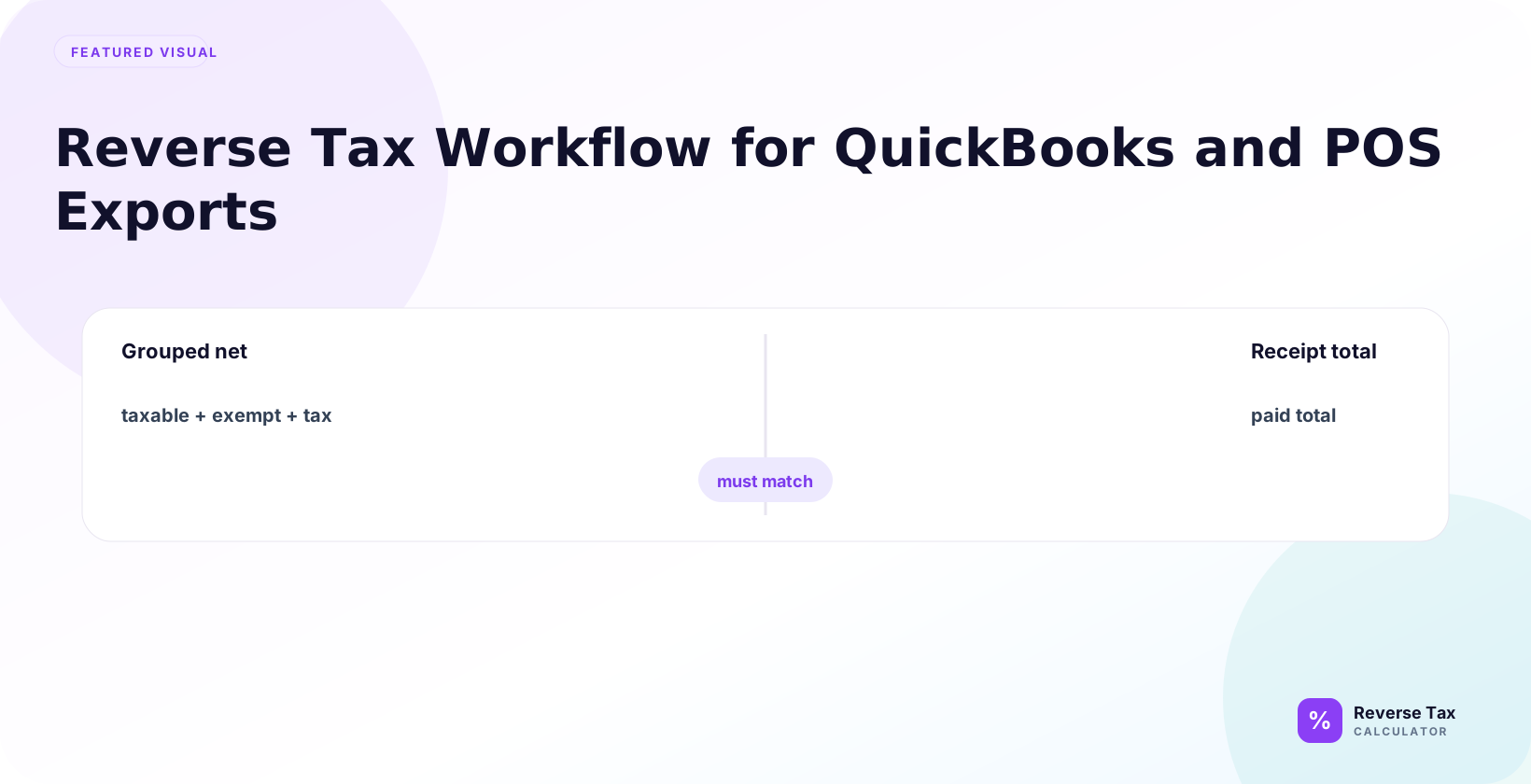
QuickBooks and POS exports need reverse tax checks when imported totals combine revenue, tax, discounts, refunds, tips, and payment adjustments. A reverse calculation can separate tax-inclusive sales into net sales and tax collected when the export does not provide clean taxable subtotals. Reliable reconciliation depends on account mapping, tax code setup, product taxability, local rates, rounded receipt lines, refunds, marketplace orders, and CSV column consistency.
Reverse tax can help clean reports, but only after the source fields are understood.
What Is the Workflow?
Use this sequence:
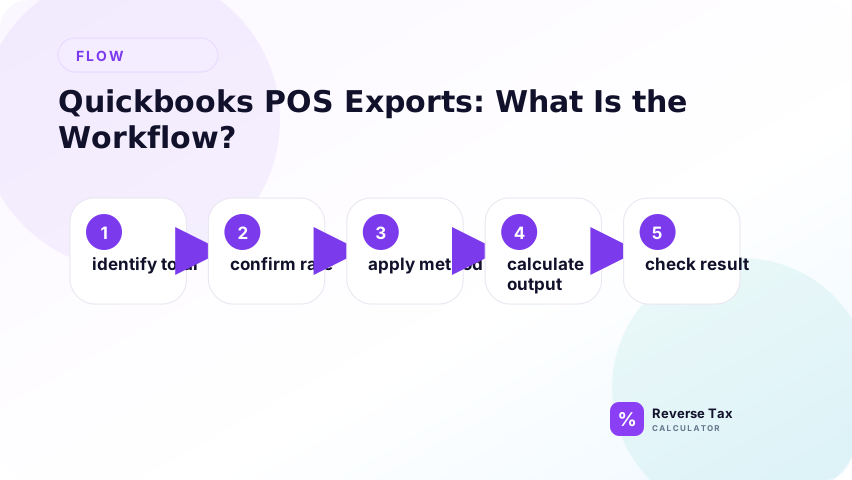
- Export transaction detail from the POS, ecommerce platform, or accounting system.
- Identify total, subtotal, tax, tips, discounts, fees, refunds, and payment fields.
- Remove non-tax amounts from the reverse tax base.
- Group rows by rate and taxability.
- Apply reverse tax formulas only to clean tax-inclusive groups.
- Compare calculated tax with reported tax.
- Reconcile to Sales Tax Payable and deposits.
Why Bank Deposits Are Not Enough
A bank deposit answers the cash question, not the tax question. It can include sales, tax, tips, gift card redemptions, refunds, processor fees, reserves, marketplace deductions, and timing from multiple business days. If you reverse tax from the deposit, the formula may be correct but the input is wrong. Start from transaction exports, then reconcile to deposits afterward.
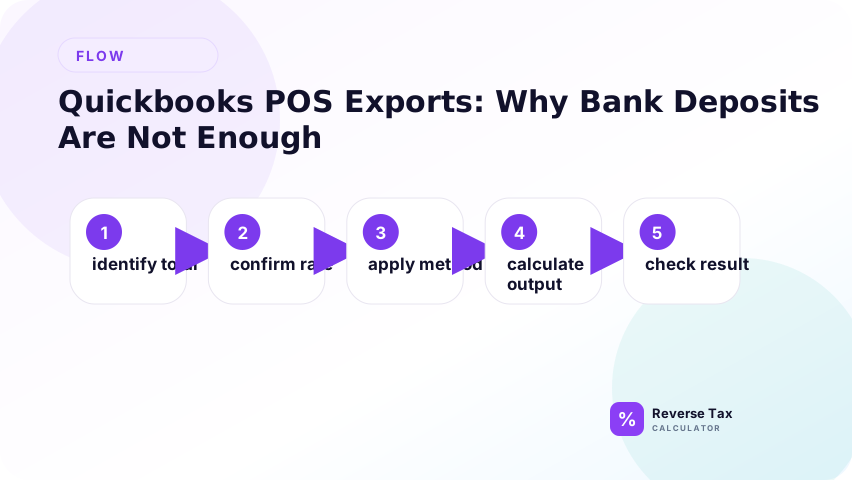
A bank deposit is a cash settlement. It may include sales, tax, tips, gift cards, refunds, fees, reserves, and prior-day settlement timing.
If you reverse tax from the bank deposit, you can understate revenue and misstate Sales Tax Payable. Use deposits as a reconciliation check, not as the primary tax calculation source.
What Fields Should You Export?
Use transaction-level fields when possible.
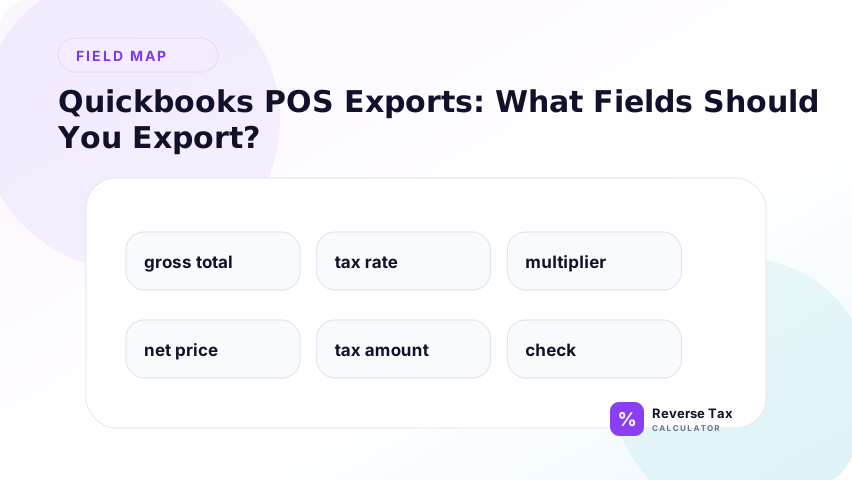
| Field | Why it matters |
|---|---|
| Transaction ID | Traceability |
| Date | Rate period |
| Location | Jurisdiction |
| Item subtotal | Revenue base |
| Tax amount | Direct evidence |
| Tax rate | Formula input |
| Discounts | Taxable base adjustment |
| Tips | Post-tax payment |
| Shipping or delivery | Charge classification |
| Refunds | Liability reversal |
| Payment method | Deposit reconciliation |
QuickBooks Export Fields
QuickBooks fields matter because accounting summaries can hide the receipt logic that created tax. For reverse tax, prioritize transaction ID, date, taxable amount, tax collected, total, customer, product or service, location, class, and deposit reference. A summary export can support reconciliation, but transaction detail is stronger for finding wrong tax bases or tax posted as revenue.
QuickBooks exports may contain sales receipts, invoices, tax lines, customer names, classes, locations, products, and payment deposits.
For reverse tax, focus on:
- Sales receipt or invoice number
- Date
- Taxable amount
- Tax collected
- Total
- Customer or location
- Product or service
- Deposit reference
POS Export Fields
POS exports often contain the richest tax evidence because they sit closest to the receipt. Useful fields include item category, tax code, discount type, tip amount, refund status, void status, payment method, and tax line. These fields answer what was taxed, how the base was built, and why the payment total differs from taxable sales.
POS systems often contain more receipt detail than accounting summaries.
Useful POS exports include transaction detail, item sales, tax summary, refund report, payment summary, discount report, and tip report.
Use POS transaction detail to identify the taxable base before using accounting totals.
Marketplace Export Fields
Marketplace exports must separate order data from settlement data. The order total and tax line explain the buyer transaction. The payout explains fees, withheld tax, refunds, reserves, ads, and cash settlement. Do not reverse tax from payout. Use order-level totals and tax fields, then use marketplace payout reconciliation for the settlement bridge.
Marketplace reports can include order total, tax collected, marketplace-remitted tax, fees, refunds, reserves, and net payout.
Do not reverse tax from payout. Use order-level customer totals and tax fields.
Spreadsheet Workflow
Create a working sheet with these columns:
| Column | Header |
|---|---|
| A | source_id |
| B | transaction_date |
| C | source_system |
| D | total_including_tax |
| E | tax_rate |
| F | tax_amount_shown |
| G | tip_amount |
| H | exempt_amount |
| I | clean_tax_inclusive_amount |
| J | calculated_pre_tax |
| K | calculated_tax |
| L | difference |
| M | notes |
Formula for clean taxable amount:
=D2-G2-H2
Formula for pre-tax:
=I2/(1+E2)
What If Tax Amount Is Already Shown?
If tax is already shown, use it as primary source evidence. Subtract the shown tax from the total to recover the pre-tax amount, then calculate the implied rate as a QA check. This is stronger than guessing a rate because the export already preserves system rounding and the source tax engine result.
Use the tax amount first.
Pre-tax amount:
=Total-Tax
Implied rate:
=Tax/(Total-Tax)
This is stronger than recalculating from a guessed rate.
What If the Export Is Tax-Inclusive Only?
If the export is tax-inclusive only, reverse tax can work, but only after the base is cleaned. Remove optional tips, exempt amounts, gift card payments, marketplace settlement deductions, and non-taxable fees before dividing by 1 plus the rate. If the rate is missing, use location, date, official rate lookup, or a tax summary report rather than guessing silently.
Use reverse tax when the rate is known:
=Total/(1+Rate)
If the rate is missing, use location, date, official rate lookup, or the system tax report. Do not guess silently.
How Do Tips Affect POS Exports?
Tips affect POS exports because they often appear inside card totals and deposit batches. Optional tips should be stored separately from product revenue and tax base. If a total includes food, sales tax, and optional tip, remove the tip first, reverse tax from the clean tax-inclusive sale, then reconcile the full payment amount.
Optional tips often appear in card totals, deposit batches, or employee tip reports. They should not be included in product revenue or sales tax base.
Remove optional tips before reverse tax.
How Do Refunds Affect Exports?
Refund rows should be matched to the original sale when possible because the original rate, item taxability, and discount treatment control the correct reversal. A refund export may include full returns, partial returns, voids, shipping credits, goodwill credits, or marketplace adjustments. Reverse only the part that actually includes tax.
Refund rows should be matched to original sales when possible. Use the original sale rate and taxability.
Refund tax:
=RefundTotal-RefundTotal/(1+OriginalRate)
If the refund report shows tax separately, use the report tax line.
Decision Matrix: Which Source Should You Trust?
| Source | Best use | Risk |
|---|---|---|
| POS transaction detail | Receipt-level tax | Configuration errors |
| QuickBooks sales receipt | Booked revenue and tax | May summarize lines |
| Tax summary report | Filing comparison | May hide detail |
| Bank deposit | Cash reconciliation | Net of fees and timing |
| Marketplace payout | Settlement | Not sales total |
| Receipt image | Source proof | Hard to bulk analyze |
Operational Workflow
| Step | Action | Output |
|---|---|---|
| 1 | Export source reports | Raw data |
| 2 | Preserve raw files | Audit trail |
| 3 | Normalize columns | Working sheet |
| 4 | Clean taxable amount | Formula input |
| 5 | Calculate reverse tax | Revenue and tax |
| 6 | Compare shown tax | Difference flag |
| 7 | Reconcile payable | Ledger support |
| 8 | Reconcile deposits | Cash support |
QA Flags
QA flags turn the workflow into a control system. A good sheet should flag missing rates, rates entered as 8 instead of 0.08, differences above the rounding threshold, blank source IDs, negative rows, deposits that do not tie, and rows where shown tax conflicts with calculated tax. These flags decide which rows need human review.
Missing rate:
=IF(E2="","Missing rate","")
Large tax difference:
=IF(ABS(K2-F2)>0.01,"Review","OK")
Possible rate format issue:
=IF(E2>1,"Check rate","OK")
Common Export Workflow Errors
| Error | Effect | Fix |
|---|---|---|
| Using bank deposits | Misstates sales | Use transaction exports |
| Ignoring tips | Overstates taxable base | Remove tips |
| Ignoring platform fees | Deposit mismatch | Record fees separately |
| Posting tax as revenue | Overstates sales | Use payable account |
| Using one rate | Local mismatch | Group by rate |
| Editing raw export | Weak audit trail | Preserve original |
How Do You Reconcile Back to QuickBooks?
Reconcile to QuickBooks by comparing calculated pre-tax revenue with booked revenue, calculated seller-collected tax with Sales Tax Payable, and payment totals with deposits. These are three different checks. Revenue, liability, and cash can disagree for valid reasons such as fees, timing, refunds, tips, and marketplace collection, but the workpaper should explain each difference.
Compare calculated revenue with booked revenue, calculated tax with Sales Tax Payable, and deposits with bank feed activity.
If QuickBooks revenue includes tax, create an adjusting workflow only after confirming the source data and accounting policy.
How Do You Reconcile Back to a POS System?
Reconcile to the POS by comparing transaction-level calculated tax with the POS tax report and receipt-level evidence. If the POS report is right but QuickBooks is wrong, the issue may be import mapping. If the POS report itself is wrong, the issue may be product tax code, location setup, discounts, voids, returns, or manual overrides.
Compare transaction-level calculated tax with the POS tax report. Differences may come from rounding, tax categories, discounts, voids, returns, or manual overrides.
Example: POS Export Cleanup
This example answers the practical query "how do I clean a POS export before reverse tax?" The important move is removing optional tips before calculating taxable sales. The card total is not the tax base. The clean tax-inclusive sale is the amount that contained sales tax, while the tip remains a separate payment or gratuity field for reconciliation.
POS export row:
Total paid: $64.00
Optional tip: $10.00
Tax rate: 8%
Clean taxable tax-inclusive amount:
$64.00 minus $10.00 = $54.00
Pre-tax sale:
$54.00 divided by 1.08 = $50.00
Tax:
$4.00
The tip stays out of sales tax and product revenue.
Example: QuickBooks Sales Receipt Cleanup
This example shows how QuickBooks data should be handled when tax is already shown. Because the tax amount appears in the sales receipt, subtraction is stronger than guessing a rate. The implied rate is still useful as a QA signal because it can reveal wrong rate setup, taxable base problems, or imported tax-inclusive revenue.
QuickBooks sales receipt:
Total: $540.00
Tax shown: $40.00
Revenue before tax:
$540.00 minus $40.00 = $500.00
Implied rate:
$40.00 divided by $500.00 = 8%
Because the tax amount is shown, subtraction is stronger than recalculating from a guessed rate.
Example: Marketplace Export Cleanup
This example explains why marketplace exports should not be treated like ordinary deposits. The customer paid one amount, the marketplace handled tax, fees reduced the seller payout, and the net cash is not the taxable base. The correct workflow starts with order detail and tax remitter fields, then reconciles the payout separately.
Marketplace order:
Customer paid: $108.00
Marketplace tax: $8.00
Platform fee: $15.00
Seller payout: $85.00
Do not reverse $85.00. Revenue may be $100.00, tax may be handled by the marketplace, and fee may be a separate expense.
Export Normalization Table
| Raw field name | Normalized field |
|---|---|
| Gross sales | total_including_tax or subtotal, depending on source |
| Tax collected | tax_amount_shown |
| Gratuity | tip_amount |
| Service charge | fee_amount |
| Net deposit | payout_or_deposit |
| Order number | source_id |
Review Checklist
The review checklist is a section-level QA gate. It should be used before formulas are trusted, not after mistakes are posted. Each item answers a different question: whether the source evidence is preserved, whether fields mean the same thing across systems, whether the taxable base is clean, whether tax agrees with the system, and whether the ledger ties out.
Use this checklist as an operational control, not a decorative summary. A reviewer should be able to move from raw export to normalized fields to calculated tax to ledger reconciliation without guessing what changed. If one checklist item is missing, the workpaper may still calculate numbers, but it will be weaker as accounting evidence.
Preserve Raw Export
Preserve the raw export because it is the evidence layer. Never overwrite it with formulas, manual edits, or normalized column names. Save the original with source system, report type, date range, export date, and reviewer. The normalized workbook should be a separate working copy so the calculation can be traced back to the source.
Never overwrite the original file.
Normalize Columns
Normalize columns so different systems use the same entity names. Gross sales, order total, total paid, and customer total may mean different things depending on source. Map them into stable fields such as source_id, transaction_date, total_including_tax, tax_amount_shown, tip_amount, exempt_amount, clean_tax_inclusive_amount, and deposit_reference.
Map source fields to consistent names.
Calculate Clean Base
Calculate the clean base before using any reverse tax formula. This means removing tips, exempt amounts, gift card redemptions, marketplace fees, reserves, and other non-tax amounts from the calculation input. A clean base answers the real query behind the workflow: what amount actually included tax?
Remove tips and non-tax amounts.
Compare System Tax
Compare system tax with calculated tax instead of overwriting it automatically. The shown tax may reflect line-level rounding and source tax settings. If calculated tax differs, inspect the taxable base, rate format, product category, discount timing, and rounding method before deciding whether there is an error.
Use shown tax where available.
Reconcile to Ledger
Reconcile to the ledger after separating seller-collected tax from marketplace-collected tax. Sales Tax Payable should usually reflect tax the seller is responsible for remitting, not every tax amount visible in an order report. This step connects reverse tax math to the accounting control that actually matters.
Compare calculated tax with Sales Tax Payable.
QuickBooks Posting Review
QuickBooks posting review checks whether tax-inclusive imports placed collected tax into revenue, liability, or a clearing account. This matters because a file can reconcile to deposits while still overstating revenue. If tax appears inside revenue, review Sales Tax Payable treatment before posting adjustments.
Review whether sales tax is booked as revenue or liability.
This review should be performed after export cleanup but before month-end signoff. If QuickBooks is used only as a summarized accounting system, compare it against POS or marketplace transaction detail rather than assuming the QuickBooks total is the original source of truth.
Revenue Review
Revenue review compares booked sales with calculated pre-tax sales. If imported totals include tax, revenue may be overstated and margin may look better than it really is. The review should document the source export, formula, tax amount, and adjustment logic so the correction is repeatable.
Tax-inclusive revenue may need a split between sales revenue and tax payable.
Liability Review
Liability review checks whether seller-collected tax is sitting in Sales Tax Payable or a similar account until remitted. It should exclude optional tips and marketplace-remitted tax unless policy and source records support inclusion. The key question is not whether tax appears on an order, but whether the seller owes that tax.
Sales Tax Payable should reflect tax collected by the seller and not yet remitted.
Deposit Review
Deposit review explains cash settlement after revenue and tax are already split. Deposits may be lower than sales because of processor fees, refunds, timing, reserves, tips, and marketplace deductions. Do not let a net deposit become the reverse tax base just because it is easy to find in the bank feed.
Deposits should reconcile to payments after fees, timing, tips, and refunds.
POS Tax Category Review
POS tax category review is high value because one wrong tax code can affect hundreds of receipts. Review new products, exempt items, shipping, discounts, service charges, and manual overrides. If a product is assigned the wrong tax category, the export may look internally consistent while still calculating tax on the wrong base.
POS exports may include tax categories or product tax codes.
Review new products, exempt items, shipping, discounts, and service charges. A wrong product tax flag can create many wrong receipts.
Example: End-of-Day Workflow
This example answers the end-of-day query for stores and restaurants that have tax-inclusive card sales and optional tips in one POS report. The workflow removes optional tips first, reverses tax only from clean taxable sales, then compares the result with the POS tax summary. That order prevents tips from inflating taxable sales.
End-of-day POS report:
Tax-inclusive card sales: $5,400.00
Optional tips: $600.00
Tax rate: 8%
Clean tax-inclusive sales:
$5,400.00 minus $600.00 = $4,800.00
Pre-tax sales:
$4,800.00 divided by 1.08 = $4,444.44
Tax:
$355.56
Compare this against POS tax summary before posting.
Export Control Table
| Control | Why it matters |
|---|---|
| Raw export archived | Preserves evidence |
| Mapping table saved | Explains field changes |
| Formula version noted | Supports repeatability |
| Reviewer initials | Adds accountability |
| Difference threshold | Focuses review |
| Exception log | Tracks unresolved rows |
Exception Log Example
| Exception | Possible cause | Action |
|---|---|---|
| Missing rate | Export omitted rate | Use tax report or official lookup |
| Tax difference over one cent | Wrong base or rate | Review receipt |
| Deposit mismatch | Fees or timing | Check payment report |
| Tip included | POS total includes gratuity | Remove tip |
| Marketplace tax in payable | Double count risk | Check platform remitter |
Monthly Close Workflow
The monthly close workflow should be repeatable. Preserve raw exports, run normalized formulas, review QA flags, post revenue and payable, reconcile deposits, save the workpaper, and compare current exceptions with prior months. Recurring errors should be fixed in the POS, marketplace, or QuickBooks mapping rather than manually corrected forever.
At month end, preserve the export, run formulas, review flags, post revenue and payable, reconcile deposits, and save the workpaper. Do not wait until filing day to discover that POS tax and ledger payable do not match.
Why QuickBooks and POS Can Disagree
QuickBooks and POS can disagree because they answer different system questions. The POS records checkout logic, item tax categories, discounts, tips, voids, and refunds. QuickBooks may receive summarized batches, mapped accounts, tax agency settings, and deposits. A mismatch does not automatically mean either system is wrong. It means the bridge between source transaction and accounting entry needs review.
QuickBooks may contain summarized accounting entries while the POS contains transaction-level receipt logic. Differences can come from imported batches, tax agency mapping, refunds, voids, tips, cash rounding, and manual journal entries.
The fix is not to choose one blindly. Reconcile both to source transactions.
What Should Be Saved with the Workpaper?
The workpaper should save enough evidence for another reviewer to repeat the result. Keep raw exports, normalized spreadsheet, mapping table, formula version, exception log, reconciliation summary, source reports, and reviewer notes. For repeatable imports, use the reverse tax CSV template or the multiple-row reverse tax workflow.
Save raw exports, normalized spreadsheet, formula version, exception log, reconciliation summary, and reviewer notes. IRS Publication 583 emphasizes keeping records that support business amounts. The workpaper should let another reviewer trace each number back to source records.
Information Gain: Export Workflow Is a Data Pipeline
The information gain is that QuickBooks and POS reverse tax should be treated as a data pipeline, not a one-cell formula. Export quality, field mapping, tax base cleanup, formula logic, QA flags, ledger reconciliation, and workpaper evidence all affect the final answer. Competitor pages often show the formula but skip the dirty-data steps that cause real bookkeeping errors.
The main insight is that reverse tax in accounting software is not one formula. It is a data pipeline: export, preserve, normalize, clean, calculate, compare, reconcile, and document.
This framing prevents the common mistake of using a clean formula on dirty source data.
Trust Boundary
This workflow is for calculation, cleanup, and reconciliation. It does not decide taxability, filing treatment, accounting policy, marketplace facilitator rules, or software configuration requirements. Use official reports and an accounting professional for filing-sensitive adjustments. For formula work after normalization, use the Excel reverse tax formula.
This workflow explains spreadsheet and reconciliation mechanics. It does not replace accounting advice, official sales tax filing rules, or software-specific tax configuration review.
Use official reports and an accounting professional for filing-sensitive adjustments.
Frequently Asked Questions
Can I reverse tax from a QuickBooks deposit?
Usually no. A QuickBooks deposit is a cash settlement and may be net of fees, timing, refunds, tips, or batch activity. Start from transaction detail, sales receipts, invoices, POS exports, or order reports. After the revenue and tax split is calculated, reconcile the result back to the deposit.
Usually no. Start from transaction detail, then reconcile to deposits.
Should POS tips be included?
Optional tips should be removed before reverse tax because they are not usually product revenue or sales tax base. Store them in their own column so card totals, employee tips, taxable sales, and bank deposits can still reconcile. Mandatory service charges may require separate review because they can behave differently from optional gratuities.
Optional tips should be removed before reverse tax.
What if the export already shows tax?
Use the shown tax amount first, then calculate the implied rate if needed. Shown tax is source evidence and may reflect line-level rounding. Reverse calculation should verify the system result, reveal rate or base issues, and support reconciliation. It should not replace source tax automatically without review.
Use the shown tax amount and calculate implied rate if needed.
Can marketplace payout be reversed?
No. Use order-level totals, not net payout. A marketplace payout can include sales, marketplace-collected tax, seller fees, refunds, reserves, chargebacks, and advertising charges. Reverse tax belongs to the order or refund amount. Payout reconciliation explains why the cash deposit differs from customer charges.
No. Use order-level totals, not net payout.
What is the best QA check?
The best QA check is to rebuild the transaction from source fields: clean taxable base, calculated pre-tax amount, calculated tax, shown tax, final total, and deposit reconciliation. If the rebuilt transaction does not match, inspect missing fields, rounding, tips, refunds, discounts, fees, and marketplace remittance before posting.
Rebuild total and compare calculated tax with shown tax.
Sources and Notes
- Formula source: arithmetic relationship between tax-inclusive totals, rates, pre-tax amounts, tax, and reconciliation fields.
- IRS Publication 583, Starting a Business and Keeping Records