
A reverse tax formula in Excel calculates the pre-tax price by dividing a tax-inclusive amount by one plus the tax rate. The tax amount is then the gross total minus the calculated net price, with the rate stored as a decimal or percentage cell. Excel results need consistent number formatting, one taxable base per row, fixed rounding rules, and separate formulas for exempt items, discounts, shipping, and mixed-rate receipts.
This page explains how to set up the formula in Excel, how to avoid percentage-entry mistakes, how to calculate tax amount and variance, and how to handle shown tax amounts, mixed rows, VAT, GST, and sales tax.
What Is the Excel Reverse Tax Formula?
If the tax-inclusive total is in A2 and the tax rate is in B2, use:
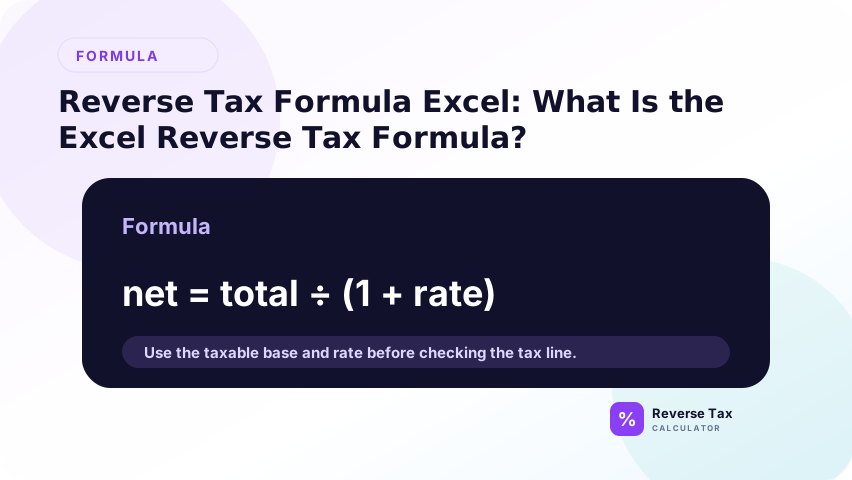
=A2/(1+B2)
If A2 is $108.00 and B2 is 8%, Excel returns $100.00. That is the before-tax amount. The formula works because it reverses the multiplier that created the tax-inclusive total.
This formula assumes A2 is already tax-inclusive. If A2 is a subtotal before tax, the formula is the wrong direction. Labeling the source amount is just as important as entering the formula correctly.
How Do You Calculate the Tax Amount in Excel?
Use:
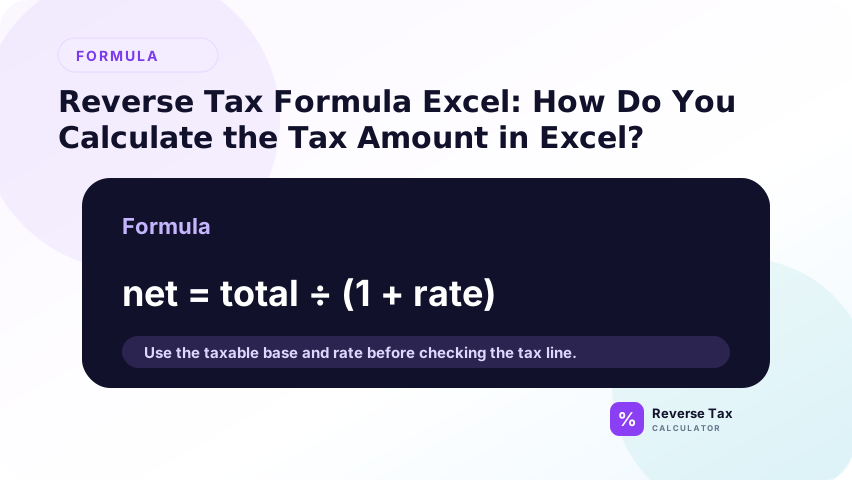
=A2-(A2/(1+B2))
This subtracts the before-tax amount from the tax-inclusive total. If A2 is $108.00 and B2 is 8%, the tax amount is $8.00.
For readability, it is usually better to calculate before-tax amount in one column and tax amount in another column instead of using one long formula everywhere.
Separate columns also make QA easier. If the before-tax amount looks wrong, you can inspect that formula without untangling the tax amount formula. This is useful when a workbook has many rows.
How Should the Rate Be Entered?
Enter the rate as a percentage, such as 8%, or as a decimal, such as 0.08. Do not enter 8 unless the formula divides it by 100.
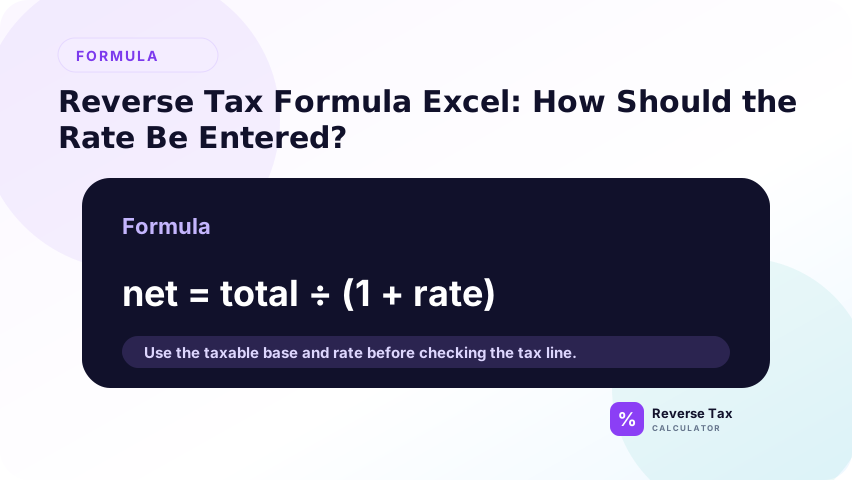
If users may enter whole-number rates, create a normalized rate column:
=B2/100
Then use the normalized rate in the reverse formula. This prevents rate-entry errors.
Rate entry is one of the most common Excel problems. A cell that displays 8 may mean 8, 8%, or 0.08 depending on formatting and formula design. A normalized rate column removes that ambiguity.
Excel Example Table
| Total including tax | Rate | Before-tax amount | Tax amount |
|---|---|---|---|
| $108.00 | 8% | $100.00 | $8.00 |
| $113.00 | 13% | $100.00 | $13.00 |
| $120.00 | 20% | $100.00 | $20.00 |
This table shows the same formula across different rates. The divisor changes with the rate.
Why You Should Not Use Total Times One Minus Rate
Do not use =A2*(1-B2) for reverse tax. That subtracts the percentage from the tax-inclusive total and gives the wrong before-tax amount.
At 8%, $108.00 times 0.92 equals $99.36, but the correct before-tax amount is $100.00. The subtracting tax percentage guide explains this common Excel mistake.
This error often appears because the formula resembles a discount calculation. Reverse tax is not a discount. It must undo the original tax multiplier by dividing, not by subtracting a percentage from the total.
How to Use Structured References
If your Excel data is formatted as a table, use structured references:
=[@[tax_inclusive_total]]/(1+[@[tax_rate]])
Structured references make formulas easier to read and safer to copy. They also reduce errors when columns move or new rows are added.
They are especially helpful when the workbook is shared. A reviewer can understand tax_inclusive_total and tax_rate immediately, while A2/(1+B2) requires checking the column headers.
How to Add a Rebuilt Total Check
Add a rebuilt total column:
=BeforeTaxAmount+TaxAmount
Then add a variance column:
=OriginalTotal-RebuiltTotal
The variance column is the QA control. A variance greater than one cent should be reviewed for wrong rate, mixed items, rounding, or source-data problems.
The rebuilt total check is what keeps Excel from becoming a silent calculator. It proves that the calculated before-tax amount and tax amount return to the source total, which is the minimum test for internal consistency.
How to Handle Shown Tax Amounts
If the receipt or invoice already shows the tax amount, use subtraction:
=Total-ShownTaxAmount
This is often better than reconstructing tax from a rate because it respects the source document's rounding method. Use the rate formula only when the tax amount is missing or when checking the shown value.
Create a method column for this case. Rows calculated from shown tax and rows calculated from a rate should not be mixed without a label, because their evidence sources are different.
How to Handle Multiple Rates in Excel
Store the tax rate on each row. Do not hardcode one rate for a sheet that may contain multiple jurisdictions, products, dates, or tax categories.
If one receipt has multiple tax groups, split it into multiple rows and connect them with a group ID. Each group should use its own rate and rebuilt-total check.
Do not average multiple rates into one row for accurate work. Average rates can be useful for quick estimates, but they hide item-level tax treatment and make the calculation difficult to verify.
How to Handle VAT and GST in Excel
VAT and GST use the same reverse formula when the price already includes tax:
=GrossPrice/(1+VATRate)
or:
=GSTInclusiveTotal/(1+GSTRate)
The rate and category must still come from the correct official source. Excel handles the math, not the legal tax treatment.
For VAT or GST files, add a category column such as standard, reduced, zero-rated, exempt, or mixed. This prevents a standard-rate formula from being applied to rows that should not use that rate.
How to Prevent Excel Formula Errors
Use clear column names, protect source columns, normalize rates, and avoid formulas that mix several tasks at once. Separate before-tax amount, tax amount, rebuilt total, and variance.
Also use data validation for price type. A row marked tax-exclusive should not use the reverse formula.
Protect formula columns when possible. Many Excel errors happen when users paste over formulas, sort partial ranges, or type manual corrections into calculated cells. Protection and validation reduce those risks.
For rows imported from CSV or POS exports, use the multiple spreadsheet rows workflow so the Excel formula is applied only after row classification.
Excel QA Checklist
Before trusting the sheet, check that rates are percentages or normalized decimals, totals are tax-inclusive, formula columns are filled, variance is reviewed, and mixed rows are split.
Also confirm that formulas did not break after sorting, filtering, importing, or pasting new rows. Excel errors often come from workflow, not arithmetic.
Include a small manual sample in the QA. Pick a few rows, calculate them by hand or with a calculator, and compare them with the Excel result. This catches structural mistakes that formatting checks may miss.
Trust Boundary
Excel can calculate reverse tax, but it cannot verify taxability, exemptions, filing treatment, or whether the rate is correct. It also cannot know whether the source total includes tips, shipping, deposits, or mixed items unless those are modeled.
Use source records and official tax authority guidance for compliance-sensitive decisions.
Excel should be treated as a calculation environment, not a tax authority. The workbook can show the formula, but it cannot prove that a rate, category, jurisdiction, or source total is correct.
Frequently Asked Questions
What is the reverse tax formula in Excel?
Use =A2/(1+B2) when A2 contains the tax-inclusive total and B2 contains the tax rate as a percentage or decimal.
How do I calculate tax amount in Excel?
Use =A2-(A2/(1+B2)), or subtract the calculated before-tax amount from the total in a separate column.
Why is my Excel result wrong?
Common causes include entering 8 instead of 8%, using 1-rate instead of 1+rate, applying one rate to mixed items, or using a total that does not actually include tax.
Sources and Notes
- Microsoft Excel table guidance
- Formula source: arithmetic relationship between tax-inclusive total, tax rate, before-tax amount, and tax amount.