A reverse tax CSV template organizes gross amounts, tax rates, net prices, included tax, and notes in separate columns so calculations can be checked row by row. CSV files do not store formulas reliably across every tool, so the template should keep input fields separate from calculated outputs when imported into a spreadsheet. Clean headers, decimal rates, currency consistency, taxable grouping, and rounding notes prevent bulk reverse tax errors.
This page explains which columns a reverse tax CSV should include, how formulas should work after import, how to prevent copied-formula errors, and how to use the file for receipts, invoices, refunds, VAT, GST, and sales tax without hiding tax-sensitive assumptions.
What Is a Reverse Tax CSV Template?
A reverse tax CSV template is a plain-text spreadsheet structure for reverse tax calculations. CSV files store rows and columns, so they are easy to import into Excel, Google Sheets, accounting systems, and data workflows.
The template is not just a blank table. It is a control system that tells users which values are inputs, which values are calculated, and which values need source evidence.
What Columns Should the Template Include?
At minimum, the template should include source ID, transaction date, jurisdiction, price type, tax-inclusive total, tax rate, before-tax amount, tax amount, rebuilt total, variance, and notes.
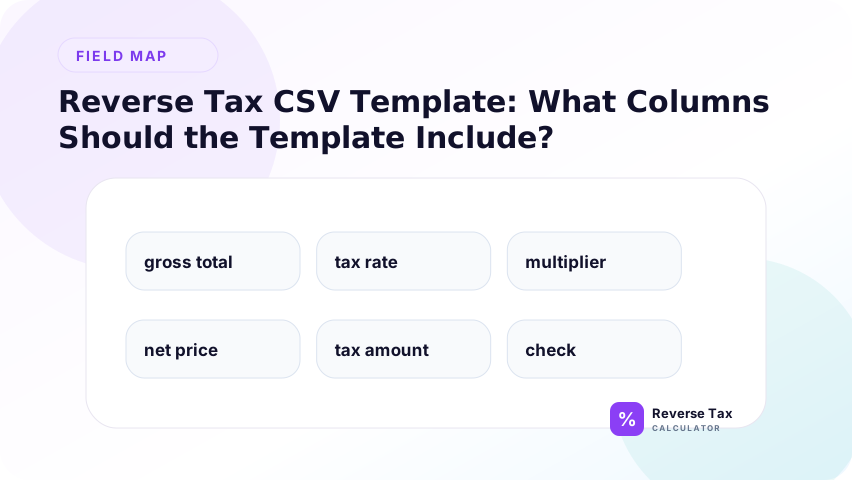
Recommended columns:
| Column | Purpose |
|---|---|
| source_id | Receipt, invoice, or order reference |
| transaction_date | Rate and audit evidence |
| price_type | Tax-inclusive, tax-exclusive, shown tax, mixed |
| tax_rate | Rate used in calculation |
| tax_inclusive_total | Total being reversed |
| before_tax_amount | Calculated output |
| tax_amount | Calculated output |
| rebuilt_total | QA check |
| variance | Difference from source total |
| notes | Assumptions and exceptions |
Why Price Type Is Required
Price type prevents the wrong formula from being copied across the file. A tax-inclusive row needs reverse tax. A tax-exclusive row needs forward tax. A row with a shown tax amount may only need subtraction.
Without price type, users may apply one formula to every row. That is how a CSV file can silently reverse subtotals, add tax twice, or misread payout amounts as receipt totals.
What Formula Should the CSV Support?
For a tax-inclusive total and known rate:
before_tax_amount = tax_inclusive_total / (1 + tax_rate)
Then:
tax_amount = tax_inclusive_total - before_tax_amount
The CSV itself may not store formulas depending on the system, but the column names should make the formula unambiguous after import into a spreadsheet.
This is why the template should separate input columns from output columns. A user should never need to guess whether a value was imported from the source system or calculated later. Clear separation prevents accidental overwriting of source evidence.
How Should the Template Handle Shown Tax Amounts?
If the receipt or invoice already shows the tax amount, use that amount as source evidence. The before-tax amount should be:
before_tax_amount = total - shown_tax_amount
This can be more accurate than reconstructing tax from a rate because it respects the source system's rounding method. Add a shown_tax_amount column if the template is used for receipt cleanup.
The template should also include a calculation method column. A row that used shown-tax subtraction should be labeled differently from a row that used rate-based division. That makes later QA faster and prevents users from comparing unlike methods as if they were the same.
How Should the Template Handle Multiple Rates?
Multiple rates should use separate rows or a group ID. Do not force a mixed receipt into one row with one rate. Each taxable group should have its own rate, total, before-tax amount, and tax amount.
Add a group_id column when one receipt has several taxable groups. This lets the spreadsheet rebuild the full receipt after calculating each group.
The group ID is important because one receipt can produce several calculation rows. Without a group ID, those rows become disconnected from the original source document. A reviewer should be able to filter one receipt and see all taxable groups together.
How Should the Template Handle Exempt Items?
Exempt items should be separated from taxable groups. They may be included in revenue or payment totals, but they should not be divided by 1 plus a positive tax rate.
Use a tax_status column with values such as taxable, exempt, zero-rated, shown tax, or mixed. The mixed taxable and exempt items page explains why this grouping is necessary.
Exempt rows should usually bypass the reverse formula. They can still be part of the receipt total or revenue analysis, but there is no included tax to remove with a positive tax rate. That distinction should be visible in the template.
How Should the Template Handle Rounding?
The template should include a rebuilt total and variance column. The rebuilt total adds calculated before-tax amount and tax amount. The variance compares the rebuilt total with the original source total.
Small variances may come from rounding. Larger variances should trigger review. Do not hide variance by forcing formulas to match.
The template should keep unrounded calculation values available when possible and use rounded display values for currency. If a system needs exact receipt matching, add a rounding method note so users know whether the source rounded by item, group, or total.
How to Use the Template in Excel
After importing the CSV into Excel, convert the data range into a table so formulas fill consistently. Use structured references where possible.
Example:
=[@[tax_inclusive_total]]/(1+[@[tax_rate]])
Then calculate tax amount and variance in separate columns. Keep raw source columns unchanged so the calculation can be audited later.
Excel users should convert the imported CSV into a table before adding formulas. Tables make structured references easier and reduce the chance that a formula skips new rows after additional data is pasted.
How to Use the Template in Google Sheets
In Google Sheets, keep source columns locked or protected if multiple users will edit the file. Use formula columns for before-tax amount, tax amount, rebuilt total, and variance.
Use data validation for price type and tax status. This reduces inconsistent labels such as “tax included,” “inclusive,” “included tax,” and “gross,” which can break filtering and QA.
For shared Google Sheets, protect formula columns and allow users to edit only source and note fields. This prevents accidental formula deletion while still letting reviewers add evidence, comments, and corrections.
CSV Template Example
| source_id | price_type | tax_rate | tax_inclusive_total | before_tax_amount | tax_amount | variance |
|---|---|---|---|---|---|---|
| R-1001 | tax-inclusive | 8% | $108.00 | $100.00 | $8.00 | $0.00 |
| R-1002 | shown-tax | $54.00 | $50.00 | $4.00 | $0.00 | |
| R-1003-A | mixed-group | 5% | $105.00 | $100.00 | $5.00 | $0.00 |
The example shows why price type and grouping matter more than adding columns for appearance.
CSV Quality Checklist
Before using the template, confirm that required fields are present, source totals are not overwritten, tax rates are normalized, price type is filled, and variance checks are active.
Also check that no row uses a tax rate when the tax amount is already shown and no row reverses a tax-exclusive amount. These are the most common spreadsheet mistakes.
Before exporting results, filter by blank price type, blank rate, non-zero variance, mixed status, and manual notes. Those filters reveal rows that need human review before the CSV is used for bookkeeping or reporting.
Internal Linking and Template Use
The template should link users to the deeper workflow only where context requires it. For example, a note about formula direction can point to the Excel reverse tax formula, while mixed rows can point to the mixed-item receipt guide.
Links should be contextual in help text or documentation, not dumped into a separate link table that distracts from the template instructions.
Trust Boundary
A CSV template organizes calculations. It does not verify taxability, rates, exemptions, filing treatment, or accounting classification. It can make assumptions visible, but it cannot prove those assumptions are legally correct.
Use source receipts, invoices, official tax authority guidance, and accounting records for compliance-sensitive decisions.
The template improves consistency, not legal certainty. A clean row can still be based on the wrong rate or wrong taxability assumption, so source evidence should remain attached to every important calculation.
Frequently Asked Questions
Can a CSV file store formulas?
Plain CSV files store values, not spreadsheet formulas reliably across all systems. The template should define formula-ready columns, and formulas can be added after import into Excel or Google Sheets.
What is the most important column?
The most important control column is price type. It tells the user whether the row needs reverse tax, forward tax, subtraction of shown tax, or item-group handling.
Should I include source notes?
Yes. Source notes explain whether the rate came from a receipt, official source, system export, or manual assumption. That context matters for audit and review.
Sources and Notes
- IRS Publication 583 recordkeeping guidance
- Formula source: arithmetic relationship between tax-inclusive total, tax rate, before-tax amount, tax amount, and rebuilt total.